

Key Takeaways
- Your phone's advertised storage capacity is always larger than what's actually available to you.
- App cache, system files, and offline data quietly consume significant space over time.
- Clearing cache is generally safe; deleting app data resets the app to a fresh install state.
- Photos and videos are typically the largest single contributor to storage use.
- Moving content to cloud storage frees local space without permanently deleting your files.
Phone Storage
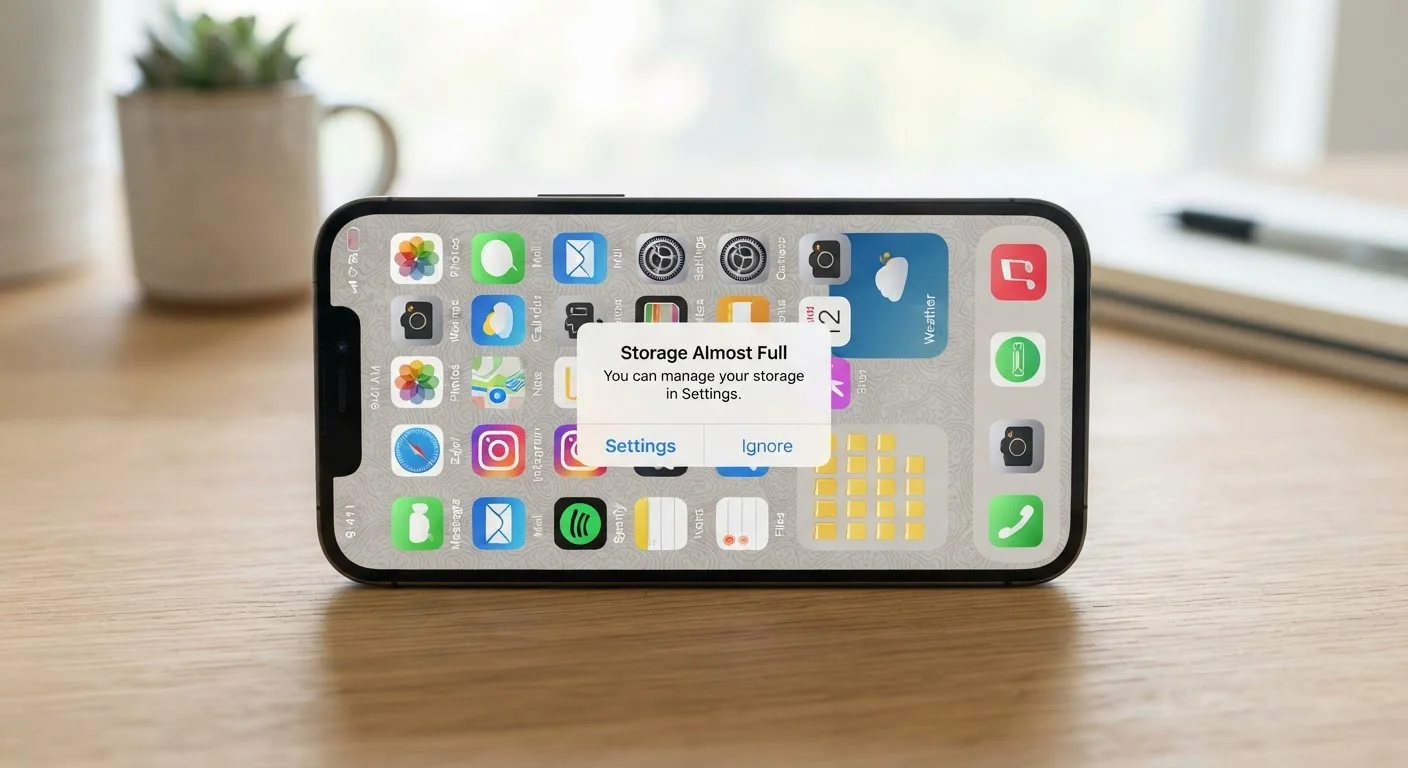
Phone storage refers to the built-in space your device uses to hold everything it needs to function: the operating system, apps, your photos and videos, downloaded files, and hidden data like caches and system logs. When that space fills up, your phone can't write new data - which triggers the 'Storage Full' warning. It's separate from your phone's RAM (working memory) and has nothing to do with your cellular data plan.
Most modern smartphones use NAND flash memory for storage. The advertised capacity (e.g., 128 GB) is always larger than the usable amount, because the operating system and pre-installed software occupy a fixed portion before you ever set up the device.
Where Your Storage Actually Goes
The moment you set up a new phone, a meaningful chunk of its advertised storage is already spoken for. The operating system - iOS or Android - along with pre-installed apps and system frameworks typically consume between 10 GB and 20 GB before you add a single photo. That's why a phone marketed as 64 GB may show only 45-50 GB available on day one.
Beyond the operating system, storage fills from four main sources:
- Apps and games - installation files plus any downloaded content (offline maps, game assets, podcast episodes)
- Photos and videos - video files in particular are large; a single minute of 4K footage can exceed 400 MB
- App cache and temporary files - data apps store locally to load faster or function offline
- System logs and update residue - files left behind after software updates that aren't always automatically cleaned up
Understanding this breakdown matters because each category calls for a different response when space runs low. See also our piece on why devices slow down over time for how storage connects to overall performance.
Cache, Data, and What's Safe to Delete
The terms cache and app data appear in every phone's storage settings, and confusing them leads to frustration - or accidental data loss.
Cache is a collection of temporary files an app saves so it doesn't have to re-download or reprocess the same information every time. Your browser stores cached versions of web pages; a streaming app may cache album artwork. Clearing cache is safe and reversible - the app simply rebuilds it over time. You won't lose any personal content.
App data is a different matter. This includes your account credentials, saved preferences, locally stored messages, and game progress. Deleting app data is effectively a factory reset for that specific app. You'll need to log in again and reconfigure settings.
Check Storage Before You Delete Anything
On iPhone, go to Settings > General > iPhone Storage. On Android, go to Settings > Storage. Both views rank apps by size and flag large files, so you can see exactly what's consuming space before making any decisions. This takes less than a minute and usually reveals one or two clear targets.
Both iOS and Android offer a storage breakdown in Settings that shows which apps and categories are consuming the most space. Checking this before deleting anything helps you target the actual culprits rather than guessing.
The Role of Cloud Storage
Cloud storage doesn't increase your phone's internal capacity - it gives you a place to move files off the device while keeping them accessible. When photos are backed up to a cloud service and removed from local storage, that space is freed immediately.
Most phone platforms offer automatic photo backup options that upload images and videos to remote servers and optionally remove the local copies, replacing them with lower-resolution previews. The full-quality originals remain accessible when you have a network connection.
It's worth understanding the distinction between backup (a safety copy that doesn't remove the original) and sync with remove local (which does free space). Confusing the two can leave you thinking you've freed storage when you haven't. Our article on cloud storage key terms explains these distinctions in plain language.
10-20 GB
Storage used by OS before setup
The operating system and pre-installed software on most modern smartphones consume this range of storage before any personal content is added.
~400 MB
Space per minute of 4K video
One minute of 4K video recorded at high quality can occupy roughly 400 MB, making video the fastest category to fill available storage.
Several GB
Typical hidden cache accumulation
After months of normal use, background app caches and temporary system files can collectively occupy several gigabytes without any deliberate downloads by the user.
What Happens When Storage Hits Zero
A completely full phone doesn't just stop accepting new photos - it can behave erratically across the whole system. Apps may crash on launch because they can't write temporary files. Text messages may fail to send if the messaging app can't log the conversation. System updates may refuse to install. Some apps won't open at all.
Operating systems try to reserve a small buffer to prevent hitting absolute zero, but that buffer is finite. Once it's consumed, normal functions begin to fail in ways that look like software bugs or hardware problems.
If your phone is behaving strangely and you've ignored storage warnings, checking available space is a reasonable first diagnostic step - before assuming something more serious is wrong. For context on how app data and storage relate to the broader picture of what your phone collects and stores, see what carriers and apps collect.