
Getting Reliable Home Internet: What the Setup and Placement Decisions Actually Change

Key Takeaways
- Router placement is one of the highest-impact, zero-cost changes you can make to improve Wi-Fi coverage.
- Equipment quality matters - older or ISP-supplied routers can bottleneck a fast internet plan.
- Wired connections consistently outperform Wi-Fi for latency-sensitive tasks like video calls and gaming.
- Interference from walls, appliances, and neighboring networks degrades wireless performance significantly.
- Network configuration choices - like Wi-Fi band selection - affect speed and range in different rooms.
Why Setup Decisions Matter More Than You'd Expect
Most households assume that internet reliability is entirely their provider's responsibility. In reality, a significant portion of everyday connection problems originate inside the home - in how equipment is positioned, how old it is, or how the network is configured. If you've ever wondered why your connection feels slow in certain rooms despite paying for a fast plan, the answer is usually found in your local setup, not the pipe coming into the house.
If you're still sorting out the basics - connection types, speed tiers, and key terminology - the plain-language primer for new subscribers is a helpful starting point before diving into the practices below.
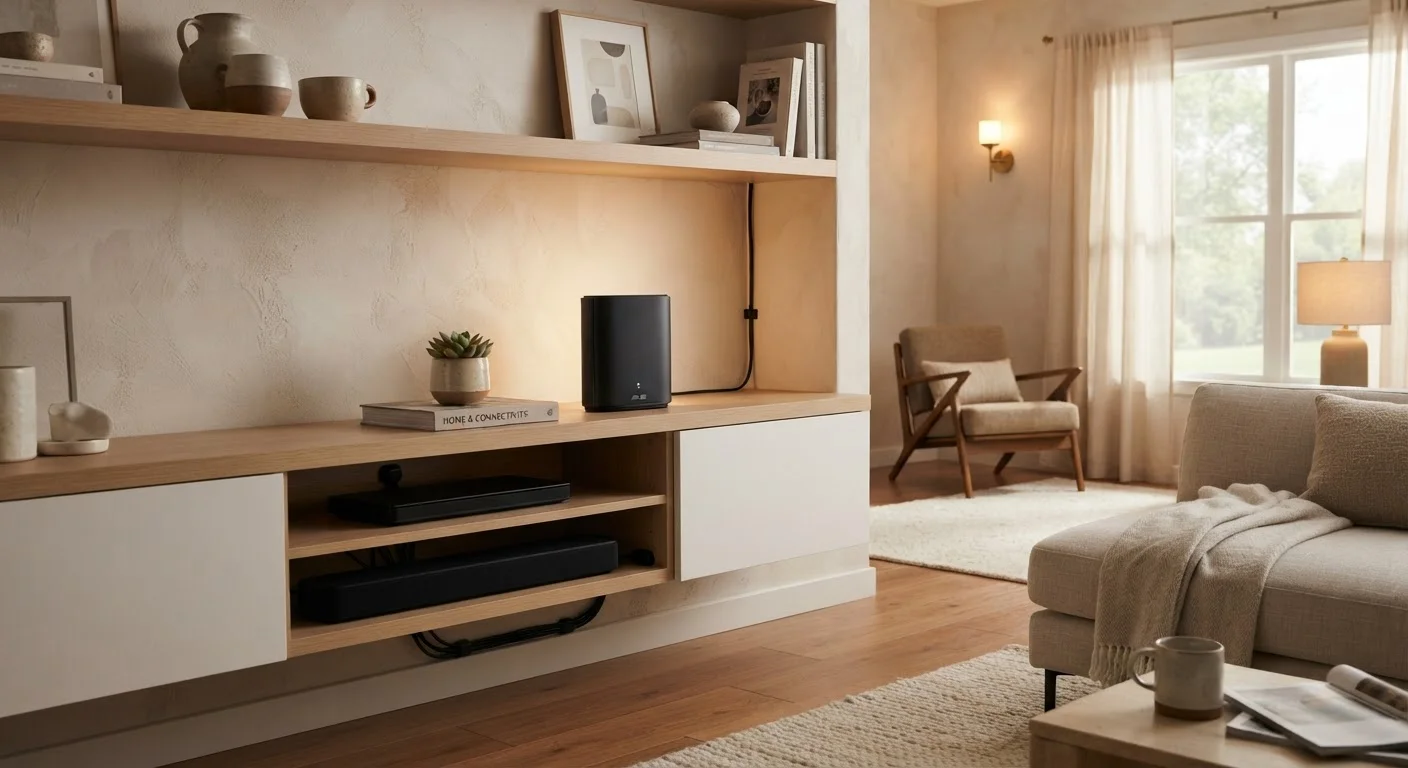
Place your router in the most central, elevated, open location possible.
Centralized placement minimizes the distance signal must travel to any room. Elevation and open space reduce obstruction and interference, extending effective coverage without adding any equipment.
Use a wired Ethernet connection for devices where reliability matters most.
Wi-Fi is convenient but subject to interference, congestion, and distance degradation. A wired connection offers consistent latency and throughput that wireless simply cannot match, particularly for video conferencing, streaming 4K content, or online gaming.
Audit and replace aging networking equipment before upgrading your internet plan.
Paying for a faster tier delivers no benefit if your router is the performance bottleneck. Identifying whether equipment is the limiting factor first saves money and frustration.
Keep your router firmware up to date.
Router manufacturers release firmware updates that patch security vulnerabilities and can improve stability and performance. Running outdated firmware leaves your network exposed and may cause compatibility issues with newer devices.
Minimize sources of radio interference near your router.
Microwave ovens, cordless phones, and some baby monitors operate on frequencies that overlap with 2.4 GHz Wi-Fi, causing signal degradation during use. Distance from these devices reduces interference.
Placement and Physical Environment
Wireless signals don't travel equally in all directions or through all materials. Concrete, brick, metal appliances, and even water-filled fish tanks absorb or deflect radio waves. This means a router tucked in a corner closet - or buried behind a TV entertainment center - will serve far fewer rooms effectively than one placed in the open center of your home.
Elevation also plays a role. Routers broadcast signals outward and slightly downward, so placing the device on a shelf or countertop rather than on the floor measurably extends its effective range. The goal is line-of-sight access to as many rooms as possible.
Test Before You Rearrange Furniture
Before committing to a new router location, use your phone's Wi-Fi signal indicator or a free signal-strength app to map coverage in different spots. Walk the rooms you care about most and note where signal drops. This takes five minutes and gives you real data to act on rather than guessing.
Equipment Quality and Age
An internet plan's advertised speed is the maximum the provider delivers to your home - your router then distributes that capacity wirelessly. An older router using the Wi-Fi 4 (802.11n) standard simply cannot deliver the throughput that Wi-Fi 5 or Wi-Fi 6 equipment can, regardless of what speed tier you're paying for. If your router is more than five or six years old, it may be the actual ceiling on your performance.
ISP-supplied equipment is often entry-level by design. Reviewing whether renting versus owning your router and modem makes financial and performance sense is worth your time - the trade-offs of renting vs. owning your home router and modem are more significant than most subscribers realize.
40-60%
Typical wireless throughput loss vs. rated speed
Under real-world conditions with walls and interference, Wi-Fi performance commonly falls well below a router's advertised maximum, according to independent networking researchers.
5-7 years
Average useful life of consumer Wi-Fi routers
Industry observers generally consider consumer routers functionally outdated after five to seven years as Wi-Fi standards and device requirements evolve.
Configuration Choices That Affect Daily Use
Most modern routers broadcast on two or three frequency bands. The 2.4 GHz band travels farther and penetrates walls better but offers lower peak speeds. The 5 GHz band is faster but shorter in range. Devices close to your router benefit from 5 GHz; devices in distant rooms typically do better on 2.4 GHz. Many routers now handle this automatically through band steering, but manually assigning devices to the right band can still improve performance in complex homes.
For households with many connected devices - smart TVs, phones, laptops, security cameras - network segmentation can also help. A separate guest Wi-Fi network keeps visitor devices isolated and prevents them from competing with your primary devices for bandwidth.