

Key Takeaways
- Accessibility features built into smartphones are available to all users, not just those with disabilities.
- Settings like display zoom, text size, and captions can reduce eye strain and improve daily usability.
- Voice control and switch access can speed up navigation for anyone in hands-free situations.
- Exploring your phone's accessibility menu takes minutes and can permanently improve how you use it.
Why Accessibility Settings Deserve a Closer Look
Smartphone accessibility features were originally designed to remove barriers for people with visual, hearing, motor, or cognitive differences. But many of these tools solve everyday frustrations that have nothing to do with a disability - squinting at small text on a bright screen, struggling to hear a call in a noisy restaurant, or tapping the wrong button because the interface is too cluttered.
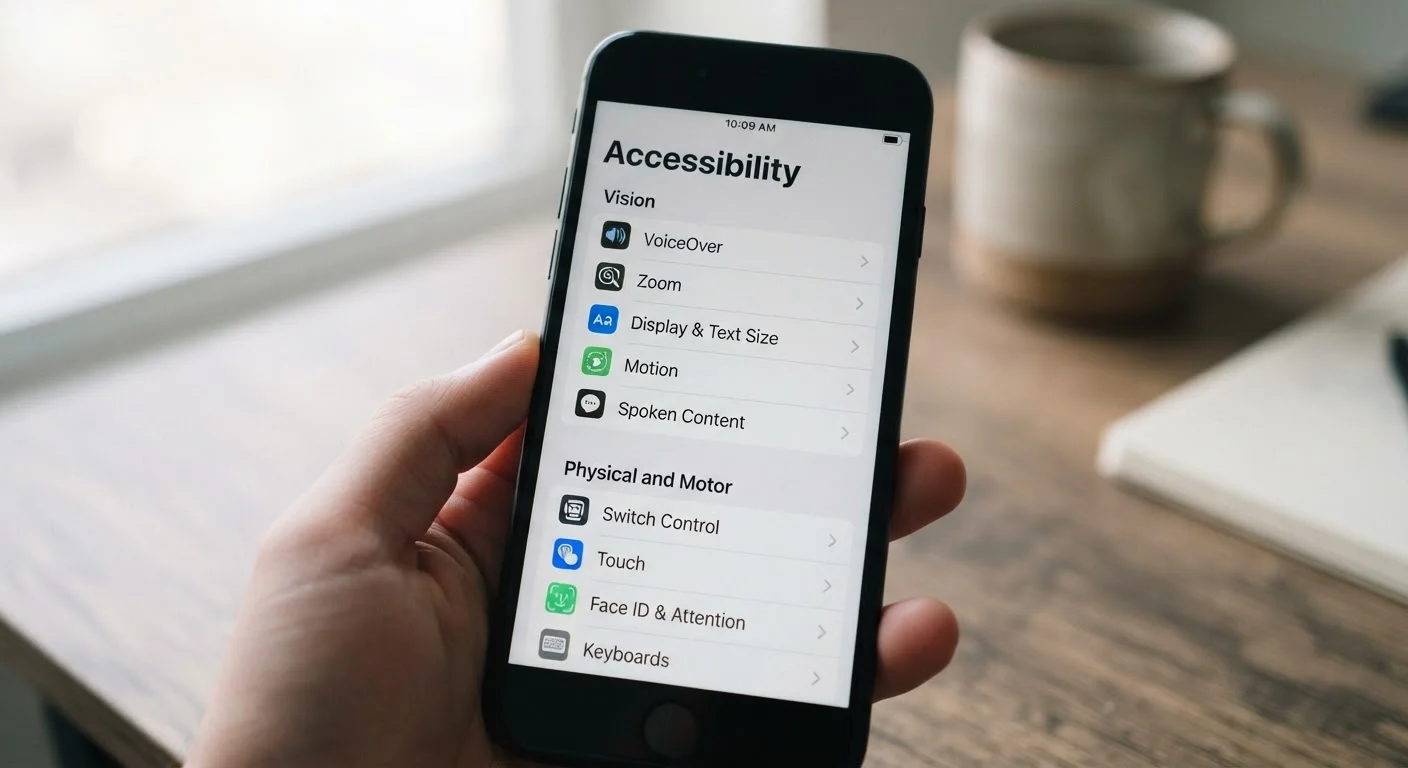
Both major mobile platforms - iOS and Android - embed a dedicated Accessibility section directly in Settings. Most users never open it. That's a missed opportunity, because several of these features work well for anyone who spends significant time on their phone. For a broader look at the phones and plans landscape, see the Phones & Plans hub.
Core Practices for Getting the Most from These Tools
The features below are available on most current smartphones. Navigation paths vary slightly by operating system version, but the options themselves are broadly consistent.
Increase display text size and enable bold text system-wide.
Default font sizes are calibrated for average viewing conditions, but screen brightness, ambient light, and viewing distance vary constantly. Larger, bolder text reduces the effort required to read notifications, messages, and menus, and can lower the eye strain that builds up over a long day of use.
Turn on display zoom or magnification for fine-detail tasks.
Magnification lets you temporarily enlarge any part of the screen without permanently changing the system font size. This is especially useful when reviewing small print in documents, maps, or screenshots where standard zoom gestures in apps don't help.
Enable Live Captions for video and audio content.
Auto-generated captions aren't just for viewers who are deaf or hard of hearing - they're valuable any time audio isn't practical, such as in public spaces, during meetings, or when watching content without headphones. They also help when speakers have strong accents or when audio quality is poor.
Use Voice Control or Voice Access for hands-free navigation.
Voice control lets you operate your phone entirely by spoken commands - opening apps, composing messages, and tapping buttons - without touching the screen. Beyond disability use cases, this is genuinely useful while cooking, driving, or any time your hands aren't free.
Activate Reduce Motion to cut down on distracting animations.
System animations - parallax effects, app-open transitions, spinning loaders - can feel visually overwhelming for some users and contribute to motion sensitivity or cognitive fatigue during prolonged use. Reducing them also has a minor positive effect on battery and responsiveness on older hardware.
Configure color filters or high-contrast mode for better screen legibility.
Low-contrast interfaces and color-coded UI elements can be hard to read in daylight or under fluorescent lighting, regardless of color vision differences. High-contrast mode darkens backgrounds and increases text-to-background contrast ratios, making elements easier to distinguish at a glance.
Quick Actions You Can Take Right Now
You don't need to overhaul your phone to start benefiting. A few targeted changes can make an immediate difference.
A Note on Privacy and Voice Features
Several accessibility tools - voice control, dictation, and live captions - process audio input either on-device or through a cloud service depending on your phone model and settings. Before enabling these, it's worth understanding how your device handles that data. Our article on what carriers and apps collect walks through what typically gets logged and what controls you have.
On-device processing (where audio never leaves your phone) is now available for many voice features on recent hardware. Check your phone's Accessibility or Privacy settings for details specific to your model.
On-Device vs. Cloud Processing for Voice Features
Whether voice commands and dictation are processed locally on your phone or sent to a remote server depends on your device model, operating system version, and the specific feature. Newer flagship hardware generally supports more on-device processing. Check your phone's Privacy or Accessibility settings to see which option applies to your device before using voice-based accessibility tools in sensitive contexts.
If you're setting up a phone for a child and want to layer accessibility features alongside content restrictions, the parental controls guide covers how those systems interact.